Dual Monitor USB-C Docking Stations: What to Check Before Buying for Office Setups
Dual Monitor USB-C Docking Stations: What to Check Before Buying for Office Setups
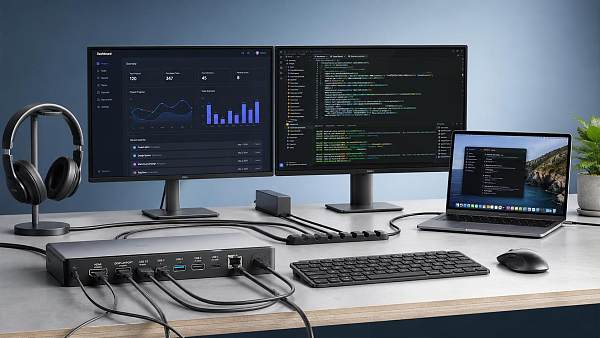
Choosing dual monitor USB-C docking stations for office setups is not just about adding more ports.
It affects display compatibility, charging power, network stability, and long-term procurement value.
For office rollouts, a poor fit can create hidden costs fast.
Common issues include monitors not extending properly, laptops undercharging, unstable Ethernet, and support tickets during deployment.
That is why dual monitor USB-C docking stations should be evaluated as infrastructure, not accessories.
In practical buying decisions, the best dock is the one that matches device fleets, desk layouts, security needs, and replacement cycles.
The checks below help reduce compatibility risk before purchase orders are placed.
Start with Laptop and Monitor Compatibility
The first filter is not port quantity.
It is whether the laptop can actually drive two external displays through USB-C.
Some notebooks support DisplayPort Alt Mode, while others need DisplayLink.
That difference changes setup complexity, driver requirements, and performance under heavy workloads.
A dock may advertise dual monitor output, but support can vary by operating system and processor platform.
This is especially important in mixed fleets using Windows laptops, MacBooks, and thin clients.
- Check whether the host device supports dual extended displays, not only mirrored output.
- Confirm supported resolutions such as 2x1080p, 2x1440p, or 2x4K.
- Review refresh rate limits, especially for design, trading, and analytics teams.
- Verify connector mix on the dock, such as HDMI plus DisplayPort.
- Ask whether adapters are needed for existing monitor inventory.
In office procurement, monitor legacy matters.
A low-cost dock becomes expensive if every desk also needs active video adapters.
Check Bandwidth, Resolution, and Real Display Performance
Not all dual monitor USB-C docking stations deliver the same visual performance.
The headline claim may hide tradeoffs between resolution, refresh rate, and available USB bandwidth.
For example, a dock might support dual 4K only at 30Hz.
That may be acceptable for static office applications, but poor for scrolling-heavy workflows.
Recent office setups increasingly include larger 27-inch and 32-inch displays.
This makes bandwidth planning more important than it was a few years ago.
A practical review should compare actual desk standards with the dock specification sheet.
When evaluating dual monitor USB-C docking stations, ask for tested display scenarios, not just marketing claims.
Do Not Overlook Power Delivery Requirements
Power delivery is one of the most common causes of post-purchase dissatisfaction.
Many office buyers assume any USB-C dock can charge any USB-C laptop.
In reality, wattage mismatches are common.
A 60W dock may be fine for lightweight notebooks, but not for mobile workstations.
Underpowered charging can lead to battery drain during meetings, video calls, or multi-application work.
That turns a neat desk solution into an ongoing support issue.
- Map each laptop model to its recommended charging wattage.
- Check dock power delivery under full peripheral load.
- Confirm whether the external power adapter is included.
- Review thermal behavior during all-day operation.
For standardized office setups, 85W to 100W charging support often provides more flexibility across future device refreshes.
Review Port Mix Based on Real Desk Usage
Dual monitor USB-C docking stations are usually purchased to simplify desks.
That only works when the port layout matches daily use.
A dock with many ports can still be inconvenient if the right ones are missing or badly positioned.
From recent workplace changes, more desks now rely on webcams, headsets, external storage, and wired keyboards at the same time.
That means front and rear port placement deserves attention.
Useful checks include:
- How many USB-A ports are still needed for legacy devices.
- Whether a front USB-C data port is available.
- If wired Ethernet is included and rated at 1GbE or higher.
- Whether there is an audio jack for headsets.
- If downstream charging ports can support phones or accessories.
This part of the evaluation is simple, but it directly shapes user adoption and desk cleanliness.
Assess Network Stability, Drivers, and IT Support Impact
For office environments, a dock is part of the workstation network path.
That makes reliability more important than appearance.
A stable Ethernet controller, predictable wake behavior, and manageable drivers can save significant support time.
This is where enterprise buying standards should be stricter than home-office buying standards.
Some dual monitor USB-C docking stations depend on software drivers for display or network features.
That may be acceptable, but only if deployment policies allow it.
Before buying, review these points:
- Driver dependency for display output or LAN access.
- Firmware update method and update frequency.
- Support for enterprise operating system images.
- MAC address pass-through or PXE support, if required.
- Warranty terms and local technical support availability.
More clearly than before, IT overhead is now part of dock total cost.
Calculate Total Procurement Value, Not Just Unit Price
The cheapest dual monitor USB-C docking stations rarely deliver the lowest operating cost.
A better purchasing decision looks at total deployment value over time.
That includes failure rates, return handling, compatibility gaps, spare unit strategy, and desk installation effort.
In practical business terms, every incompatibility multiplies across the fleet.
A small difference in purchase price can be justified if the dock reduces tickets and extends usable life.
A simple evaluation framework can help:
This broader cost view usually leads to stronger standardization decisions.
Use a Short Pre-Buy Validation Process
Before scaling an order, test shortlisted dual monitor USB-C docking stations in a real office environment.
A small pilot often reveals issues that specification sheets do not show.
Include at least one heavy user profile, one standard office profile, and one device from each major laptop family.
Watch for monitor wake-up delay, network drops, heat, cable strain, and charging consistency.
Also check packaging, serial traceability, and replacement handling.
These details matter when deployment moves from ten desks to hundreds.
The most effective buying approach is straightforward.
Define monitor standards, map laptop power needs, verify driver policy, and pilot before bulk purchase.
When those checks are done early, dual monitor USB-C docking stations become a productivity asset instead of a support problem.
Get weekly intelligence in your inbox.
No noise. No sponsored content. Pure intelligence.
 Oct 12, 2026How Predictive Maintenance AI Detects Machine Failures Before Unplanned DowntimeHow Predictive Maintenance AI Detects Machine Failures Before Unplanned Downtime
 Oct 10, 2026How to Scope Packaging Automation for High-Mix Lines Without Creating BottlenecksHow to Scope Packaging Automation for High-Mix Lines Without Creating Bottlenecks
 Oct 08, 2026How Digital Health Improves Diagnostic Accuracy and Workflow in Clinical LabsHow Digital Health Improves Diagnostic Accuracy and Workflow in Clinical Labs
 Oct 07, 2026Selecting Voice Picking Systems for German Warehouses: Integration, Languages and ROISelecting Voice Picking Systems for German Warehouses: Integration, Languages and ROI
 Oct 06, 2026How to Choose Last Mile Dispatch Software for On-Time Delivery at ScaleHow to Choose Last Mile Dispatch Software for On-Time Delivery at Scale
 Oct 05, 2026Vietnam’s Consumer Electronics Market: Demand Shifts and Sourcing OpportunitiesVietnam’s Consumer Electronics Market: Demand Shifts and Sourcing Opportunities
 Oct 04, 2026Digital Health Investment Priorities for Providers: Improving Access, Outcomes, and EfficiencyDigital Health Investment Priorities for Providers: Improving Access, Outcomes, and Efficiency
 Oct 03, 2026How to Specify an FR4 Custom PCB Board for High-Voltage and High-Heat DesignsHow to Specify an FR4 Custom PCB Board for High-Voltage and High-Heat Designs
 Oct 02, 2026ERP Software Market Intelligence: Adoption, Pricing, and Vendor Signals to WatchERP Software Market Intelligence: Adoption, Pricing, and Vendor Signals to Watch
 Oct 01, 2026How to Select Calibrated Temperature Data Loggers for GMP Cold Storage MonitoringHow to Select Calibrated Temperature Data Loggers for GMP Cold Storage Monitoring
 Sep 30, 2026Custom Molded Rubber Pricing: What Drives Unit Cost and Tooling Fees?Custom Molded Rubber Pricing: What Drives Unit Cost and Tooling Fees?
 Sep 29, 2026How to Evaluate Energy Management Software Vendors for Multi-Site OperationsHow to Evaluate Energy Management Software Vendors for Multi-Site Operations
 Sep 28, 2026How to Select a DIN Rail Smart Meter for Multi-Circuit Energy MonitoringHow to Select a DIN Rail Smart Meter for Multi-Circuit Energy Monitoring
 Sep 27, 2026TWS Earbuds in Vietnam: Demand Drivers, Price Tiers, and Retail Channel OpportunitiesTWS Earbuds in Vietnam: Demand Drivers, Price Tiers, and Retail Channel Opportunities
 Sep 26, 2026How UAE Clinics Can Qualify a Smart Glucometer Supplier for Accuracy and ComplianceHow UAE Clinics Can Qualify a Smart Glucometer Supplier for Accuracy and Compliance
 Sep 25, 2026Buying Aesthetic Lasers in the USA: FDA Status, Wavelengths, and Service SupportBuying Aesthetic Lasers in the USA: FDA Status, Wavelengths, and Service Support
 Sep 24, 2026Laser Cutting Brass Sheet: How to Prevent Burrs and Heat Marks on Thin PartsLaser Cutting Brass Sheet: How to Prevent Burrs and Heat Marks on Thin Parts
 Sep 23, 2026How to Choose Lightweight ANC Headphones for Comfortable All-Day TravelHow to Choose Lightweight ANC Headphones for Comfortable All-Day Travel
 Sep 22, 2026IPX5 TWS Bluetooth Earbuds: What Protection Do They Offer for Workouts?IPX5 TWS Bluetooth Earbuds: What Protection Do They Offer for Workouts?
 Sep 21, 2026What to Look for in a Grid Integration Company for Utility-Scale Solar ProjectsWhat to Look for in a Grid Integration Company for Utility-Scale Solar Projects
 Sep 20, 2026Microgrid Controller Pricing: What Drives Cost in Commercial Energy Projects?Microgrid Controller Pricing: What Drives Cost in Commercial Energy Projects?
 Sep 19, 2026How to Choose a GaN Charger for Laptops Without Compromising Power or PortabilityHow to Choose a GaN Charger for Laptops Without Compromising Power or Portability
 Sep 18, 2026Floating Solar Farm Costs: CAPEX, OPEX, and the Site Factors That Shape ROIFloating Solar Farm Costs: CAPEX, OPEX, and the Site Factors That Shape ROI
 Sep 17, 2026Drone Delivery Solutions for Last-Mile Routes: Site, Payload, and Range PlanningDrone Delivery Solutions for Last-Mile Routes: Site, Payload, and Range Planning
 Sep 16, 2026When Low-Volume Electronics Manufacturing Makes More Sense Than Mass ProductionWhen Low-Volume Electronics Manufacturing Makes More Sense Than Mass Production
 Sep 15, 2026Wholesale WiFi Smart Switches: What Buyers Should Verify Before OrderingWholesale WiFi Smart Switches: What Buyers Should Verify Before Ordering
 Sep 14, 2026How to Select IoT Sensors for Reliable Monitoring in Harsh Industrial EnvironmentsHow to Select IoT Sensors for Reliable Monitoring in Harsh Industrial Environments