How to Pick USB C Docking Stations for Dual Displays
Choosing the right USB C docking stations for dual displays can directly affect productivity, compatibility, and long-term IT value. For buyers, operators, and technical evaluators, the challenge is not just adding more screens, but ensuring stable video output, power delivery, port selection, and cross-device performance. This guide explains how to assess usb c docking stations with confidence, helping teams make smarter decisions for office, engineering, and multi-user business environments.
In B2B environments, a dock is not a minor desktop accessory. It often becomes the connection hub for laptops, displays, storage, wired networks, conference tools, and charging. A poor match can create repeated support tickets, inconsistent display output, and expensive replacement cycles within 12 to 24 months.
For procurement teams, the key question is not simply whether a docking station supports two monitors. The real evaluation should cover host device compatibility, display protocol support, wattage delivery, port mix, security expectations, and deployment scale. Technical users may focus on resolution and refresh rate, while finance approvers usually look at standardization and total cost of ownership.
The sections below break the topic into practical decision points, so information researchers, IT operators, engineering leads, channel partners, and project managers can compare options with less uncertainty and lower implementation risk.
Why Dual-Display Docking Requirements Are More Complex Than They Look
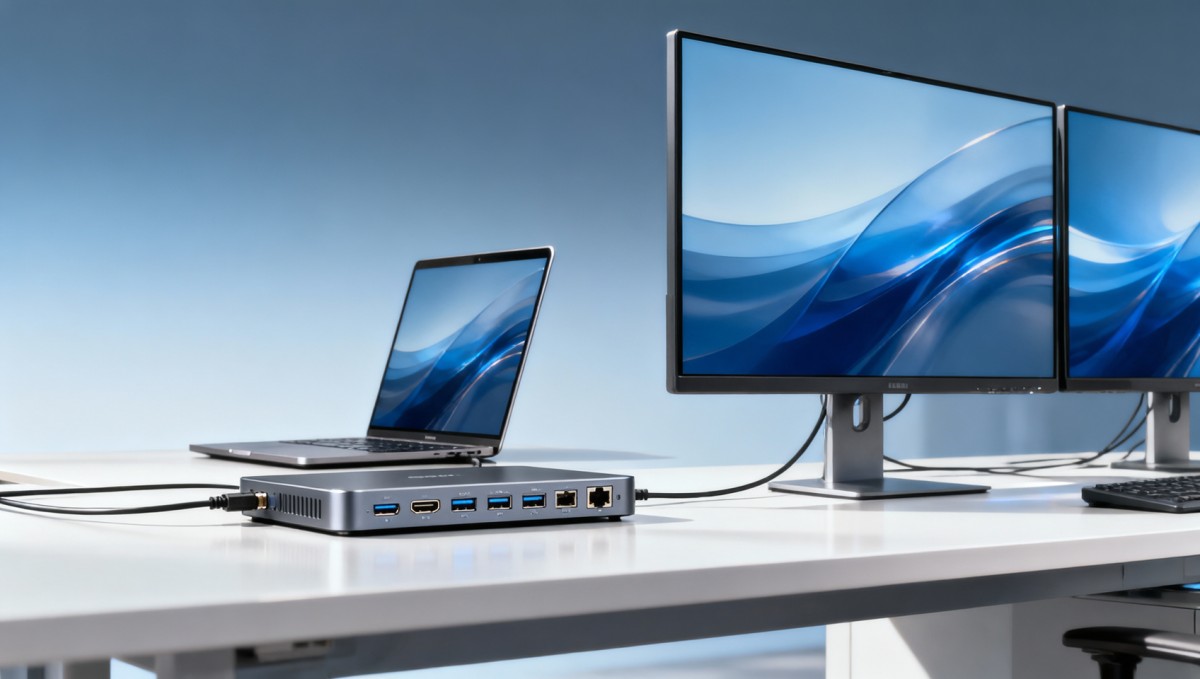
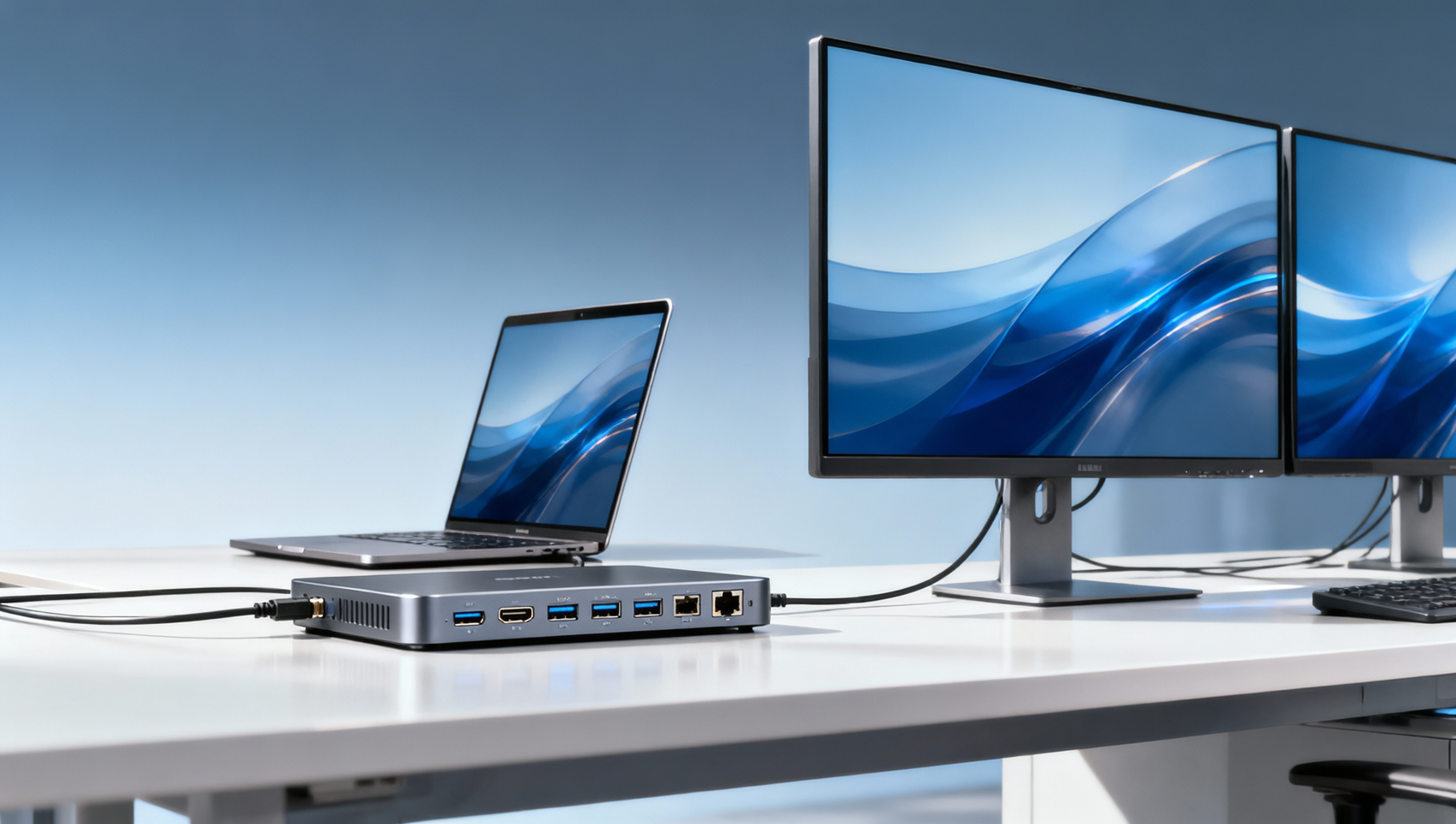
At first glance, usb c docking stations for dual displays seem straightforward: one cable from the laptop, two screens on the desk, and a cleaner workspace. In practice, successful deployment depends on several technical layers. These include the laptop’s USB-C capabilities, whether it supports DisplayPort Alt Mode or Thunderbolt, the monitor input types, and the bandwidth needed for the desired resolution.
A common office setup may only need dual 1080p displays at 60Hz, which many mainstream docks can handle. However, design, engineering, medical imaging review, or data-monitoring teams may require dual 1440p or dual 4K output. That changes the bandwidth requirement significantly and may narrow the acceptable product shortlist from 10 options to 2 or 3 viable ones.
Another complexity is host variation. In mixed-device organizations, one department may use Windows notebooks with USB-C Alt Mode, another may rely on Thunderbolt laptops, and mobile teams may connect ultrabooks with lower charging requirements. A dock that works perfectly for a 65W office notebook may underperform on a 90W to 100W mobile workstation.
For operations teams, display stability matters as much as raw specification. Intermittent screen drops, waking issues after sleep mode, and firmware incompatibility can reduce productivity more than having one fewer high-speed USB port. In multi-user environments, even a 3% to 5% failure or complaint rate can create recurring support burden.
Core factors behind real-world performance
- Host interface type: USB-C data only, USB-C with DisplayPort Alt Mode, USB4, or Thunderbolt.
- Target display load: dual 1080p, dual 1440p, or dual 4K at 30Hz or 60Hz.
- Power delivery profile: 45W, 65W, 85W, or 100W depending on notebook class.
- Peripheral demand: Ethernet, audio, keyboard, mouse, webcam, storage, and charging.
- Operating environment: hot-desking, fixed desks, meeting rooms, engineering benches, or remote work kits.
The table below shows how usage expectations change the dock selection process. This helps business evaluators avoid buying based only on price or port count.
The main takeaway is that dual-display support is only one layer of the decision. In a business rollout, the better dock is usually the one that delivers consistent uptime across 50 to 500 desks, not merely the one with the longest feature list.
Technical Specifications That Matter Most Before You Buy
When comparing usb c docking stations, technical evaluators should start with four specification groups: display output capability, charging capacity, peripheral connectivity, and network support. These directly affect whether the dock can serve business users for 2 to 4 years without creating avoidable bottlenecks.
Display output capability should be reviewed first. Many buyers assume “dual display” means dual 4K at 60Hz, but that is not always true. Some docks only support dual 1080p, while others can manage one 4K plus one 1080p. The gap becomes critical for analytics teams, CAD users, and executives using high-resolution displays in conference-enabled offices.
Power delivery is the next filter. Lightweight notebooks may run well on 45W to 65W, but mobile workstations often need 85W or 100W for full performance during charging. If the dock under-delivers power, the user may see battery drain under load, reduced CPU performance, or charging warnings during meetings and content-heavy tasks.
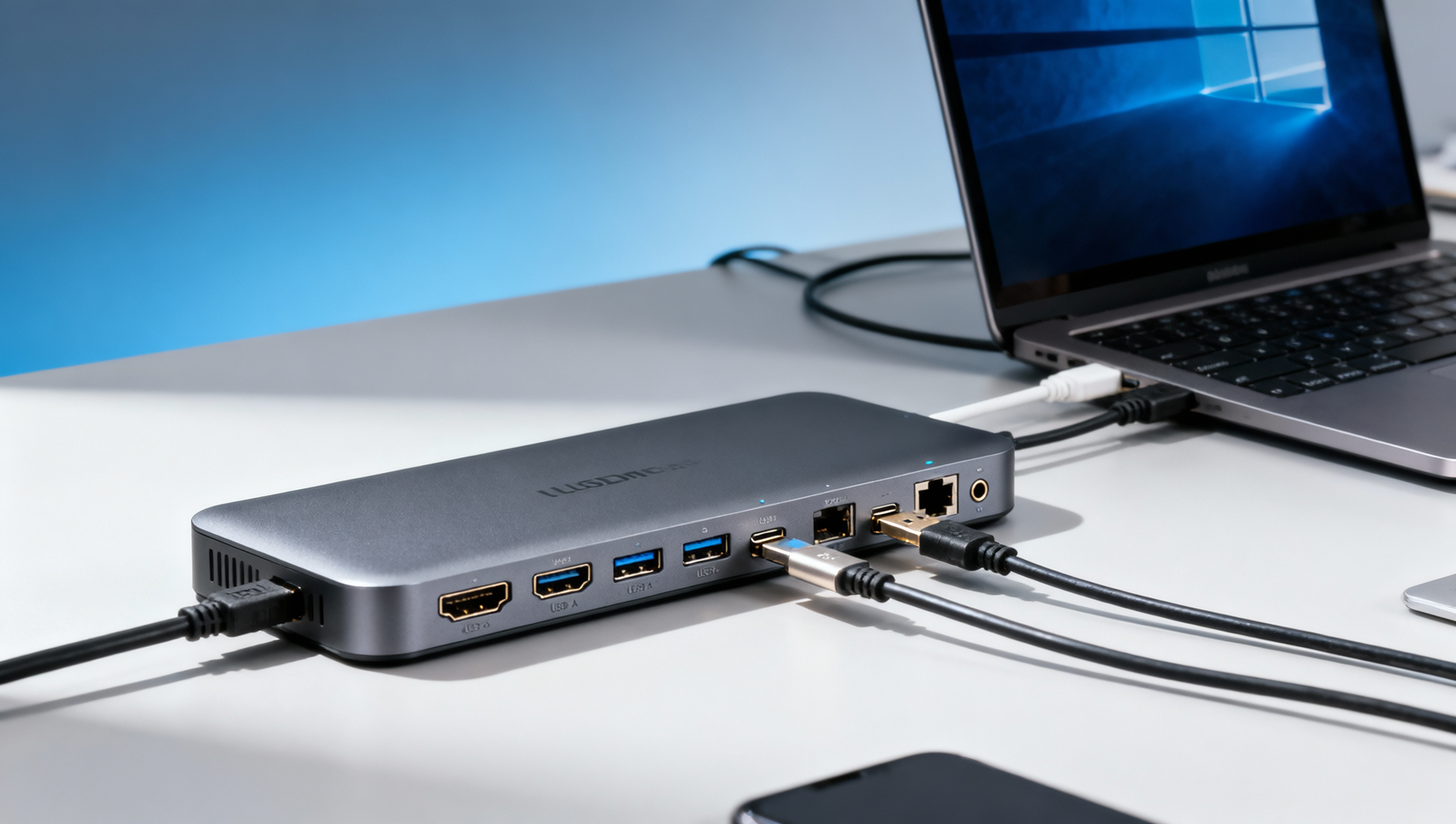
Port selection also needs practical review. A business-ready dock often needs at least 1 Gigabit Ethernet port, 3 to 5 USB-A or USB-C data ports, audio support, and 2 display outputs such as HDMI or DisplayPort. Teams using wired keyboards, scanners, external drives, or security tokens should verify the dock does not force immediate use of extra adapters.
Specification checklist for procurement and IT teams
- Confirm whether the host devices support DisplayPort Alt Mode, USB4, or Thunderbolt.
- Match dock video output to monitor resolution targets: 1080p, 1440p, or 4K.
- Choose power delivery based on laptop class: 65W for standard office, 85W to 100W for heavier workloads.
- Verify network support, preferably 1GbE for stable wired access in office or industrial settings.
- Check peripheral density to avoid adding 2 to 3 external hubs per workstation.
A practical comparison matrix
The comparison below can be used as a quick reference during vendor screening or distributor discussions.
This matrix helps separate consumer-level convenience from enterprise-grade usability. For many organizations, the right purchase point sits in the middle: enough headroom for mixed workloads, but not so overbuilt that per-desk cost rises without measurable operational benefit.
How to Match the Dock to Different Business Environments
Different industries and teams use usb c docking stations in different ways. A finance department, a healthcare technology office, a smart electronics lab, and a supply chain operations center will not all prioritize the same features. This is where contextual selection improves both performance and return on investment.
In office-heavy setups, the main goals are desk consistency, low support demand, and simple user onboarding. A standard dock with dual 1080p or dual 1440p support, 65W charging, wired Ethernet, and 4 common USB ports often covers 80% or more of user needs. The stronger value comes from standardizing one approved model across departments.
In engineering, product design, and advanced manufacturing environments, display detail and peripheral volume matter more. Users may connect test devices, external storage, serial adapters, or measurement equipment while also requiring two high-resolution displays. Here, the dock should be assessed as a workstation extension, not only as a display splitter.
Shared desks and hybrid workstations introduce another challenge: device diversity. If 20 to 40 employees rotate across a limited desk pool, docks must reconnect quickly, maintain video output after sleep cycles, and work with mixed notebook brands. Even small compatibility gaps can multiply quickly in pooled environments.
Use-case mapping by business context
- Corporate office: prioritize stability, cable simplicity, and repeatable deployment across 50 or more desks.
- Technical workstation: prioritize dual high-resolution output, higher wattage, and broader peripheral support.
- Meeting room or executive desk: prioritize fast connection, display reliability, and support for webcam and audio.
- Hybrid seating: prioritize cross-device compatibility and low reconnection failure rates over niche ports.
For channel partners and distributors, this segmentation also improves quoting accuracy. Instead of promoting one universal product, it is often more effective to define 3 tiers: standard office dock, performance dock, and mixed-fleet dock. That approach reduces returns and shortens the evaluation cycle by 1 to 2 weeks in many procurement workflows.
Common mismatch risks
The most frequent mistakes include buying a dock with insufficient charging power, assuming all USB-C ports carry video, and ignoring monitor input types. Another mistake is selecting a low-cost model for high-resolution users, then adding adapters and support time later. The resulting hidden cost can exceed the initial price difference within one budget cycle.
A stronger procurement process includes a pilot batch of 5 to 10 units, testing across at least 3 device categories, and a 7 to 14 day validation period. That small step can expose issues early and create better internal confidence before larger deployment.
Procurement Criteria, Cost Control, and Rollout Planning
From a business approval perspective, the best usb c docking stations are not always the cheapest units on the quote sheet. The more useful metric is lifecycle value. That includes purchase cost, deployment time, expected replacement cycle, support load, and whether the dock helps standardize the workstation experience across teams.
For example, a lower-cost dock may appear attractive for a 100-seat rollout. But if it requires separate power bricks for some users, extra video adapters for others, and more helpdesk intervention after firmware updates, the real ownership cost rises. For finance reviewers, these secondary costs often matter as much as unit price.
Procurement teams should also define replacement horizon in advance. In many B2B settings, a 24 to 36 month lifecycle is a practical planning window. If the selected dock already sits at the edge of current bandwidth and power requirements, it may age out faster as users move to higher-resolution displays or more power-hungry notebooks.
Rollout planning should include packaging review, installation steps, cable labeling, and support documentation. Even if a docking station is technically sound, messy onboarding across 200 desks can slow adoption and reduce perceived value among end users.
A practical procurement scorecard
The table below provides a structured model for comparing vendors or SKUs during technical and commercial review.
A balanced scorecard prevents decisions driven by only one stakeholder. IT may want maximum specifications, finance may want the lowest bid, and end users may want simple plug-and-play behavior. The right selection usually sits where those three priorities overlap.
Recommended rollout steps
- Define user groups and monitor requirements for the next 12 to 24 months.
- Shortlist 2 to 4 docking station options based on interface and power criteria.
- Run a pilot with representative users for 7 to 14 days.
- Document issues such as display wake behavior, charging performance, and cable handling.
- Approve the final SKU and create a repeatable deployment kit for wider rollout.
This process is especially useful for project managers handling office relocations, workstation refresh programs, or regional hardware standardization across multiple teams.
FAQ and Final Buying Guidance
Many buyers still have similar practical questions even after reviewing specifications. The answers below focus on decision quality, deployment risk, and fit for B2B use rather than consumer-level convenience.
How do I know if a laptop can really support dual displays through a USB-C dock?
Check whether the laptop’s USB-C port supports video output, usually through DisplayPort Alt Mode, USB4, or Thunderbolt. A USB-C charging or data port alone is not enough. For a business rollout, validate at least 3 representative laptop models before large-volume purchase.
Is 65W power delivery enough for most business users?
For many office notebooks, yes. A 65W dock is often suitable for email, browser-based work, ERP access, video meetings, and spreadsheet tasks. For mobile workstations, heavier analytics, or engineering software, 85W to 100W is usually the safer range to avoid battery drain during active use.
Should companies standardize one dock model for everyone?
Standardizing one model can simplify support, but only if at least 80% of users fit the same profile. In mixed environments, a two-tier strategy often works better: one standard office dock and one higher-performance option for technical users. That keeps procurement manageable without forcing compromise on critical teams.
What are the most common buying mistakes?
The most common mistakes are assuming every USB-C port supports dual video, underestimating power needs, ignoring monitor resolution requirements, and skipping pilot testing. Another frequent issue is buying a dock with the right outputs but not enough downstream data ports, leading to extra hubs and cable clutter.
Final decision framework
- Start with host compatibility, not price.
- Match the dock to actual display resolution and charging requirements.
- Account for user type: office, engineering, executive, or hybrid desk.
- Test before scaling, especially across mixed laptop fleets.
- Evaluate lifecycle cost over 24 to 36 months, not just purchase day savings.
Choosing usb c docking stations for dual displays is ultimately a business infrastructure decision. The right product improves workspace efficiency, reduces connection friction, and supports consistent device performance across daily operations. For procurement teams, technical reviewers, and distribution partners, a disciplined evaluation process produces better long-term value than fast, feature-only comparisons.
If your organization is reviewing workstation connectivity, hybrid desk standards, or multi-display deployment plans, now is the right time to map requirements carefully and compare options against real workloads. Contact us to discuss your application scenario, request a tailored selection framework, or explore more B2B hardware decision guides through TradeNexus Pro.
Get weekly intelligence in your inbox.
No noise. No sponsored content. Pure intelligence.
 Apr 22, 2026China Leads Global Offshore Wind Installations for 5th YearChina Leads Global Offshore Wind Installations for 5th Year
 Apr 22, 2026China Launches National Mine Safety IoT Monitoring NetworkChina Launches National Mine Safety IoT Monitoring Network
 Apr 22, 2026Yinchuan Boiler Pure Water Solution Certified for Middle East ProjectsYinchuan Boiler Pure Water Solution Certified for Middle East Projects
 Apr 22, 2026China to Enforce Mandatory EV Battery Recycling Standards by 2026China to Enforce Mandatory EV Battery Recycling Standards by 2026
 Apr 22, 2026Vietnam Launches Anti-Circumvention Probe on Electronic ComponentsVietnam Launches Anti-Circumvention Probe on Electronic Components
 Apr 22, 20262026 Shanghai Fastener Show: Robotic Fasteners Drive Overseas Procurement2026 Shanghai Fastener Show: Robotic Fasteners Drive Overseas Procurement
 Apr 22, 2026US BIS Adds EV On-Board Charger Crypto Modules to EAR Appendix 7US BIS Adds EV On-Board Charger Crypto Modules to EAR Appendix 7
 Apr 22, 2026TÜV Rheinland Updates BESS Certification: Propagation Blocking Now MandatoryTÜV Rheinland Updates BESS Certification: Propagation Blocking Now Mandatory
 Apr 22, 2026Red Sea Crisis Escalates: Suez AI Speed Limits & Slot Review from Apr 19Red Sea Crisis Escalates: Suez AI Speed Limits & Slot Review from Apr 19
 Apr 22, 2026EU CBAM Carbon Tariff Takes Effect April 1, 2026EU CBAM Carbon Tariff Takes Effect April 1, 2026
 Apr 21, 2026When to Replace CT Scanner Parts Before Downtime StartsWhen to Replace CT Scanner Parts Before Downtime Starts
 Apr 21, 2026How to Cut Costs in Lathe Turning Without ReworkHow to Cut Costs in Lathe Turning Without Rework
 Apr 21, 2026Lathe Turning Tolerances: What Can You Expect?Lathe Turning Tolerances: What Can You Expect?
 Apr 21, 2026How to Avoid Risks in Solar Panels WholesaleHow to Avoid Risks in Solar Panels Wholesale
 Apr 21, 2026Solar Panels Wholesale: How to Compare SuppliersSolar Panels Wholesale: How to Compare Suppliers
 Apr 21, 2026Solar Mounting Cost Factors You Should KnowSolar Mounting Cost Factors You Should Know
 Apr 21, 2026Solar Mounting Options: Which One Fits Your Project?Solar Mounting Options: Which One Fits Your Project?
 Apr 21, 2026How to Pick USB C Docking Stations for Dual DisplaysHow to Pick USB C Docking Stations for Dual Displays
 Apr 21, 2026USB C Docking Stations: What Ports Do You Need?USB C Docking Stations: What Ports Do You Need?
 Apr 21, 2026What Affects Dental Milling Machine ROI in 2026?What Affects Dental Milling Machine ROI in 2026?
 Apr 21, 2026Dental Milling Machines: Wet or Dry for Your Lab?Dental Milling Machines: Wet or Dry for Your Lab?
 Apr 21, 2026How to Avoid Common Medical Refrigerator MistakesHow to Avoid Common Medical Refrigerator Mistakes
 Apr 21, 2026Medical Refrigerators: What Specs Matter Most?Medical Refrigerators: What Specs Matter Most?
 Apr 21, 2026Portable or Cart Vet Ultrasound: Which to Buy?Portable or Cart Vet Ultrasound: Which to Buy?
 Apr 21, 2026Vet Ultrasound Buying Guide for Small ClinicsVet Ultrasound Buying Guide for Small Clinics
 Apr 21, 2026Yard Management Systems: Key Features to CompareYard Management Systems: Key Features to Compare
 Apr 21, 2026How Yard Management Systems Improve Dock FlowHow Yard Management Systems Improve Dock Flow