USB C Docking Stations: What Ports Do You Need?
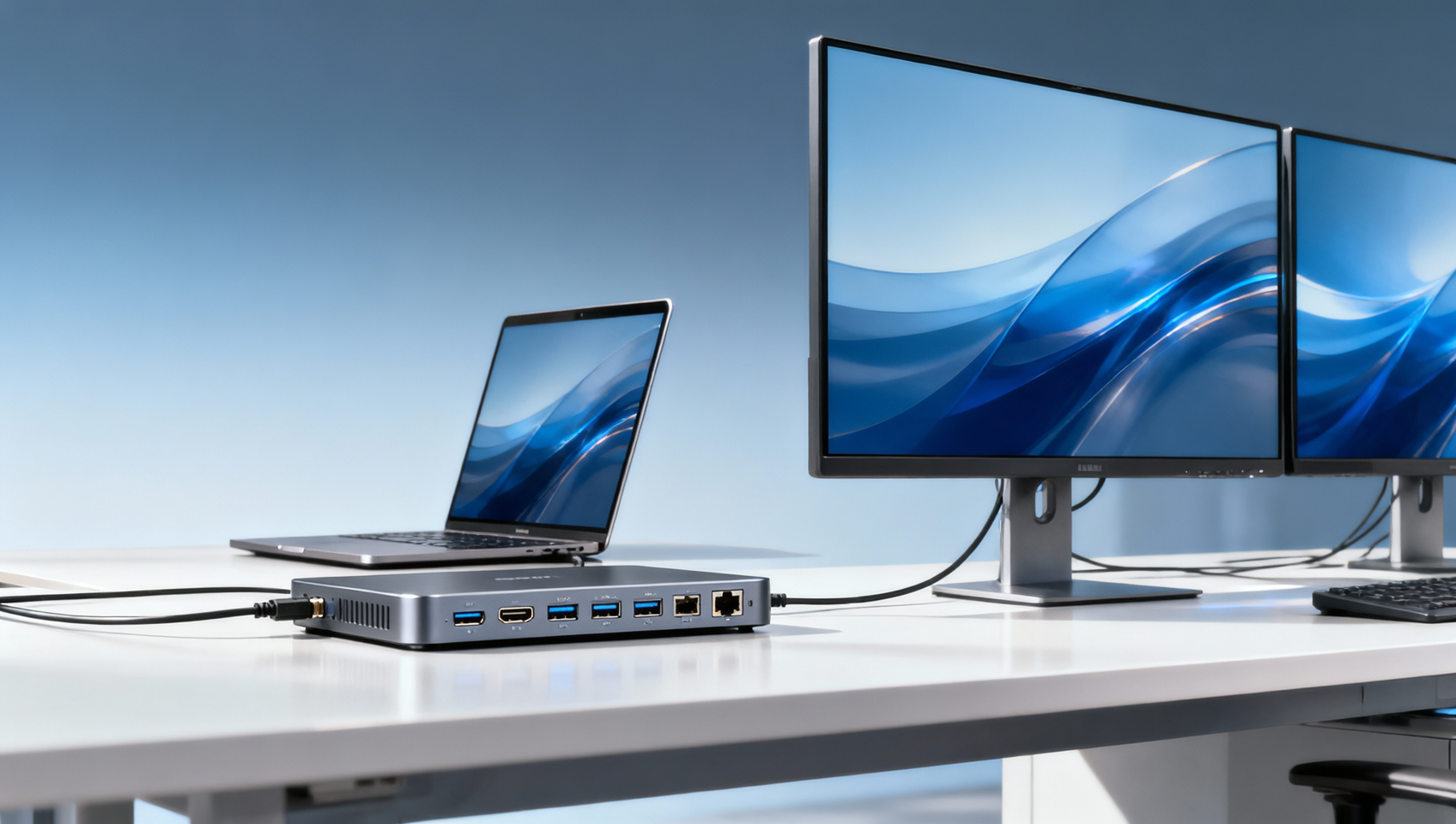
Choosing among USB C docking stations is no longer just about adding more ports—it is about matching connectivity to real workflows, device ecosystems, and budget priorities. For buyers, operators, and technical evaluators, understanding which ports truly matter can prevent compatibility issues, reduce upgrade costs, and improve productivity across modern business environments.
For most business users, the short answer is this: the best USB C docking station is not the one with the most ports, but the one with the right mix of display outputs, USB data ports, Ethernet, power delivery, and audio for your actual devices and daily tasks. A finance approver may care about avoiding over-spec purchases. An IT evaluator may focus on bandwidth limits, monitor support, and compatibility. An operator may simply need stable peripherals without reconnecting cables every day. The right decision comes from understanding which ports are essential, which are nice to have, and which are often paid for but rarely used.
What ports matter most on USB C docking stations for business use?
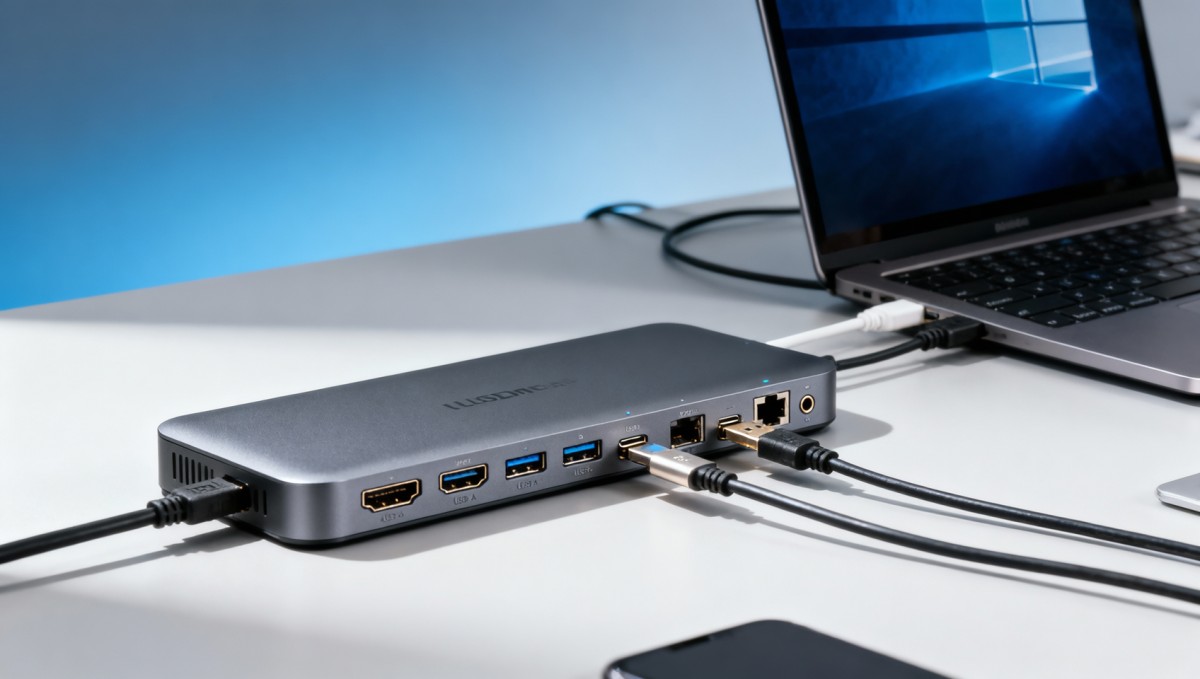
If you are comparing USB C docking stations for office, technical, or hybrid work environments, a few ports usually matter far more than the rest.
1. Display outputs
For many buyers, monitor connectivity is the first deciding factor. Common options include HDMI, DisplayPort, and sometimes both. The right choice depends on the monitors already deployed in your environment.
- HDMI is widely compatible with office monitors, meeting rooms, and consumer displays.
- DisplayPort is often preferred in professional setups, especially where higher refresh rates, better multi-monitor support, or enterprise monitor fleets are involved.
- Multiple video outputs are important for users running two or three external displays.
Key question: how many monitors does the user need, at what resolution, and from what host device? Not every USB C dock can support dual 4K displays or extended displays on every laptop platform.
2. USB-A ports
Even as USB C adoption grows, USB-A remains critical in real-world workflows. Keyboards, mice, USB headsets, printers, barcode scanners, flash drives, webcams, and specialized industrial peripherals still commonly use USB-A.
For many organizations, having at least two to four USB-A ports is still practical. A dock with only USB C may look modern but can create friction for users with legacy accessories.
3. USB C downstream ports
These ports are increasingly valuable for connecting newer storage devices, smartphones, tablets, cameras, and high-speed accessories. However, not all USB C ports are equal. Some only transfer data at basic speeds, while others support faster transfer, charging, or even video out.
Technical evaluators should verify whether the downstream USB C ports support:
- Data only
- Fast data transfer
- Device charging
- Video or alternate mode support
4. Ethernet
For business use, a wired Ethernet port is often more important than buyers initially expect. It improves stability for video calls, large file transfers, secure enterprise access, and IT-managed environments. In procurement, finance, engineering, and operations roles, Gigabit Ethernet is usually the baseline expectation.
If users regularly work with cloud platforms, ERP systems, remote desktops, or shared design files, Ethernet can provide a measurable productivity benefit over inconsistent Wi-Fi.
5. Power Delivery (PD)
One of the biggest reasons to buy a USB C docking station is single-cable convenience. But that only works well if the dock can deliver enough power to charge the laptop while running connected peripherals and displays.
This is where many mismatches happen. A dock may advertise Power Delivery, but the wattage may be too low for performance laptops, mobile workstations, or engineering devices. Common ranges include 60W, 85W, 96W, or higher.
If your fleet includes power-hungry laptops, do not treat charging support as a checkbox. Verify actual power output against device requirements.
6. Audio ports
A 3.5mm headset or audio combo jack is still useful in many office environments, customer support operations, shared desks, and conference workflows. While Bluetooth audio is common, wired audio remains simple, reliable, and easy to manage.
Which ports are essential, optional, or often unnecessary?
Not every user needs the same dock. One of the best ways to reduce cost and improve fit is to classify ports into three categories: essential, optional, and situational.
Usually essential for most business users:
- At least one display output
- Two or more USB-A ports
- Laptop charging via USB C Power Delivery
- Gigabit Ethernet
Often valuable depending on role:
- A second display output for dual-monitor work
- USB C downstream port for new accessories
- Audio jack for headset use
- SD or microSD card slot for media, design, or field documentation teams
Situational or specialized:
- Thunderbolt support for high-bandwidth workflows
- High-speed USB ports for external SSD use
- Legacy ports for niche industrial or field equipment
- Triple-display support for advanced analyst or control-room setups
For finance approvers and project managers, this matters because overbuying is common. Many companies purchase premium docks with advanced ports that most employees never use. That increases unit cost without improving productivity. On the other hand, under-spec docks create support tickets, return cycles, and hidden replacement costs.
How should buyers evaluate monitor, data, and charging needs together?
One of the most common mistakes in docking station selection is evaluating ports individually instead of as a shared bandwidth and power system. A dock may have the right-looking ports on paper, but actual performance depends on how video, USB data, network traffic, and charging work together.
Start with the user profile.
Ask these practical questions:
- Does the user need one monitor or two?
- What resolution is required: Full HD, 1440p, or 4K?
- Will the dock connect storage devices or only basic peripherals?
- Is wired Ethernet necessary for performance or policy reasons?
- How much power does the laptop require under normal load?
Then verify host compatibility.
Not every laptop with a USB C port supports the same functions. Some support charging and data but not multiple displays. Some enterprise laptops support USB4 or Thunderbolt, while others are limited to basic USB C functionality. Apple, Windows, and Chromebook environments may also behave differently.
Finally, consider desk standardization.
For IT and procurement teams, a slightly higher upfront price may be justified if one dock model can support a broader set of users and reduce support complexity. But standardization only works if the chosen dock covers the real needs of your highest-priority user groups.
What are the most overlooked buying risks with USB C docking stations?
Readers searching for “What ports do you need?” are often really asking a deeper question: what mistakes should I avoid before I buy?
Here are the most common risks.
Assuming all USB C ports are the same
They are not. USB C is a connector shape, not a guarantee of capability. Charging, video output, data speed, and Thunderbolt support can vary widely.
Focusing on port count instead of workflow fit
A dock with 12 ports is not automatically better than one with 7. If the extra ports are unused, they add cost without adding value.
Ignoring power requirements
Insufficient charging can lead to battery drain during heavy use, especially with larger laptops.
Overlooking monitor limitations
Dual-display support, refresh rate support, and maximum resolution depend on both the dock and the host device.
Buying for today only
If your device mix is shifting toward newer USB C accessories, higher-resolution monitors, or more mobile workstations, future-fit port selection matters.
Neglecting cable quality and included accessories
Performance problems are sometimes caused not by the dock itself but by weak or incompatible cables.
Which USB C dock setup fits different user roles best?
Different stakeholders in the buying process evaluate value differently. A role-based view makes decisions clearer.
For information researchers and office professionals
Prioritize dual-monitor capability, two to four USB-A ports, Ethernet, charging, and audio. This setup covers most daily productivity tasks.
For operators and workstation users
Focus on reliability, enough USB-A for peripherals, stable network access, and easy hot-desk reconnection. Simplicity often matters more than premium specifications.
For technical evaluators
Review monitor bandwidth, chipset compatibility, Power Delivery wattage, and actual USB port specifications in detail. Avoid making decisions from connector labels alone.
For business evaluators and finance approvers
Look for the best fit between user segmentation and total lifecycle cost. The cheapest dock may create support costs; the most expensive may be overspecified.
For project managers and engineering leads
Match dock capabilities to rollout plans, standard device images, desk infrastructure, and future hardware refresh cycles.
For distributors, resellers, and agents
Positioning matters. Customers usually respond better to use-case-based recommendations than to long, generic specification lists. Explain which ports solve which operational problems.
How to make a smart final decision
If you are selecting among USB C docking stations, build the decision around five checkpoints:
- Monitor needs: how many displays and at what resolution?
- Peripheral mix: mostly USB-A, increasingly USB C, or both?
- Network requirements: is wired Ethernet necessary?
- Power needs: can the dock charge the laptop properly?
- Compatibility: does the host device support the dock’s full feature set?
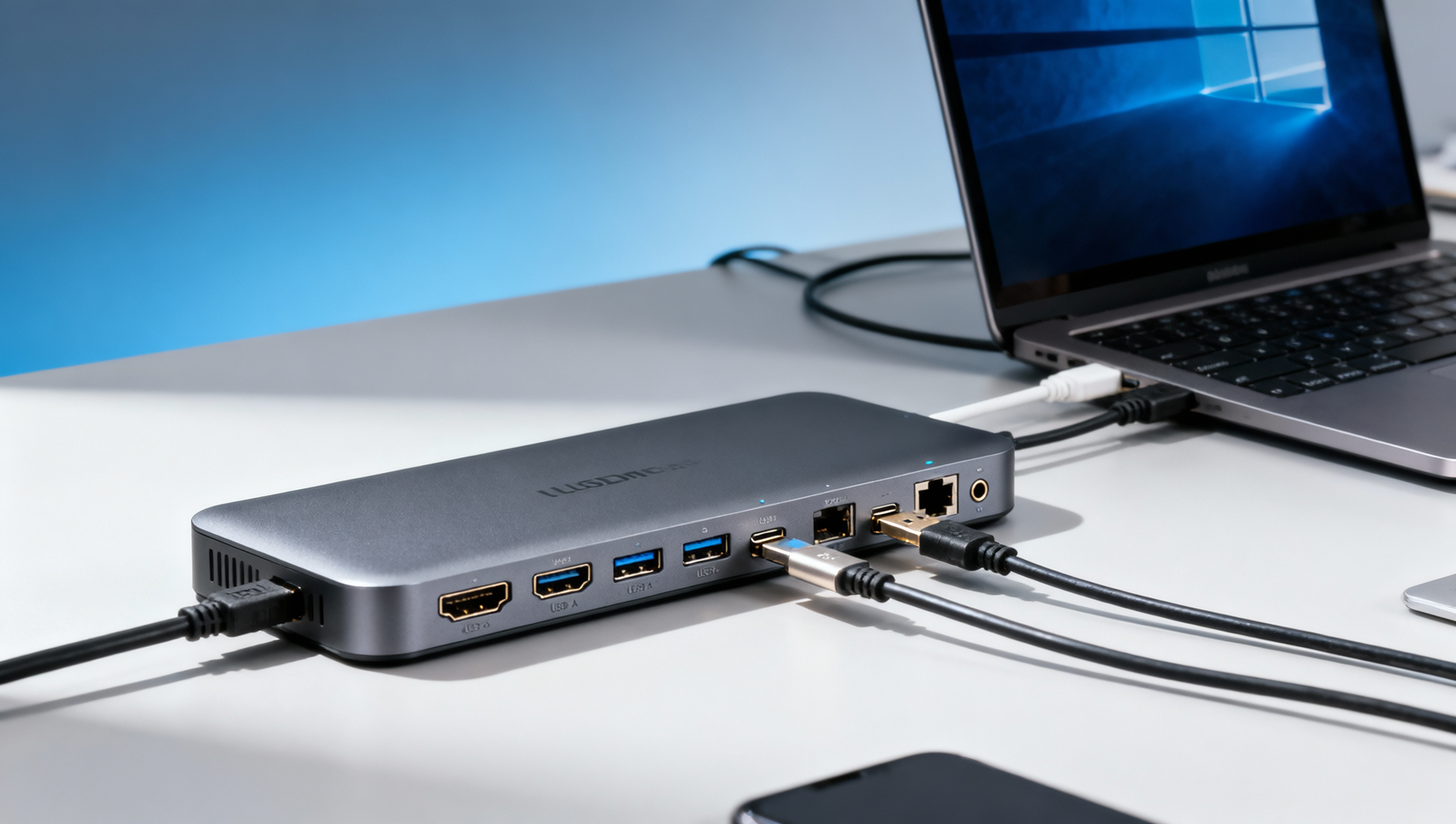
In most cases, the right port combination is straightforward: HDMI or DisplayPort for displays, multiple USB-A ports for existing peripherals, at least one USB C downstream port for newer devices, Gigabit Ethernet for reliable connectivity, and sufficient Power Delivery for true single-cable use.
That combination serves the broadest range of business users while keeping procurement practical and deployment manageable.
Ultimately, choosing the right USB C docking station is about reducing friction. The right ports improve productivity, simplify desks, support hybrid work, and avoid unnecessary repurchasing. The wrong mix leads to adapters, user frustration, and hidden IT costs. For buyers and evaluators, the most effective approach is not to ask “How many ports does this dock have?” but “Which ports will my users actually depend on every day?”
Get weekly intelligence in your inbox.
No noise. No sponsored content. Pure intelligence.
 Apr 22, 2026China Leads Global Offshore Wind Installations for 5th YearChina Leads Global Offshore Wind Installations for 5th Year
 Apr 22, 2026China Launches National Mine Safety IoT Monitoring NetworkChina Launches National Mine Safety IoT Monitoring Network
 Apr 22, 2026Yinchuan Boiler Pure Water Solution Certified for Middle East ProjectsYinchuan Boiler Pure Water Solution Certified for Middle East Projects
 Apr 22, 2026China to Enforce Mandatory EV Battery Recycling Standards by 2026China to Enforce Mandatory EV Battery Recycling Standards by 2026
 Apr 22, 2026Vietnam Launches Anti-Circumvention Probe on Electronic ComponentsVietnam Launches Anti-Circumvention Probe on Electronic Components
 Apr 22, 20262026 Shanghai Fastener Show: Robotic Fasteners Drive Overseas Procurement2026 Shanghai Fastener Show: Robotic Fasteners Drive Overseas Procurement
 Apr 22, 2026US BIS Adds EV On-Board Charger Crypto Modules to EAR Appendix 7US BIS Adds EV On-Board Charger Crypto Modules to EAR Appendix 7
 Apr 22, 2026TÜV Rheinland Updates BESS Certification: Propagation Blocking Now MandatoryTÜV Rheinland Updates BESS Certification: Propagation Blocking Now Mandatory
 Apr 22, 2026Red Sea Crisis Escalates: Suez AI Speed Limits & Slot Review from Apr 19Red Sea Crisis Escalates: Suez AI Speed Limits & Slot Review from Apr 19
 Apr 22, 2026EU CBAM Carbon Tariff Takes Effect April 1, 2026EU CBAM Carbon Tariff Takes Effect April 1, 2026
 Apr 21, 2026When to Replace CT Scanner Parts Before Downtime StartsWhen to Replace CT Scanner Parts Before Downtime Starts
 Apr 21, 2026How to Cut Costs in Lathe Turning Without ReworkHow to Cut Costs in Lathe Turning Without Rework
 Apr 21, 2026Lathe Turning Tolerances: What Can You Expect?Lathe Turning Tolerances: What Can You Expect?
 Apr 21, 2026How to Avoid Risks in Solar Panels WholesaleHow to Avoid Risks in Solar Panels Wholesale
 Apr 21, 2026Solar Panels Wholesale: How to Compare SuppliersSolar Panels Wholesale: How to Compare Suppliers
 Apr 21, 2026Solar Mounting Cost Factors You Should KnowSolar Mounting Cost Factors You Should Know
 Apr 21, 2026Solar Mounting Options: Which One Fits Your Project?Solar Mounting Options: Which One Fits Your Project?
 Apr 21, 2026How to Pick USB C Docking Stations for Dual DisplaysHow to Pick USB C Docking Stations for Dual Displays
 Apr 21, 2026USB C Docking Stations: What Ports Do You Need?USB C Docking Stations: What Ports Do You Need?
 Apr 21, 2026What Affects Dental Milling Machine ROI in 2026?What Affects Dental Milling Machine ROI in 2026?
 Apr 21, 2026Dental Milling Machines: Wet or Dry for Your Lab?Dental Milling Machines: Wet or Dry for Your Lab?
 Apr 21, 2026How to Avoid Common Medical Refrigerator MistakesHow to Avoid Common Medical Refrigerator Mistakes
 Apr 21, 2026Medical Refrigerators: What Specs Matter Most?Medical Refrigerators: What Specs Matter Most?
 Apr 21, 2026Portable or Cart Vet Ultrasound: Which to Buy?Portable or Cart Vet Ultrasound: Which to Buy?
 Apr 21, 2026Vet Ultrasound Buying Guide for Small ClinicsVet Ultrasound Buying Guide for Small Clinics
 Apr 21, 2026Yard Management Systems: Key Features to CompareYard Management Systems: Key Features to Compare
 Apr 21, 2026How Yard Management Systems Improve Dock FlowHow Yard Management Systems Improve Dock Flow