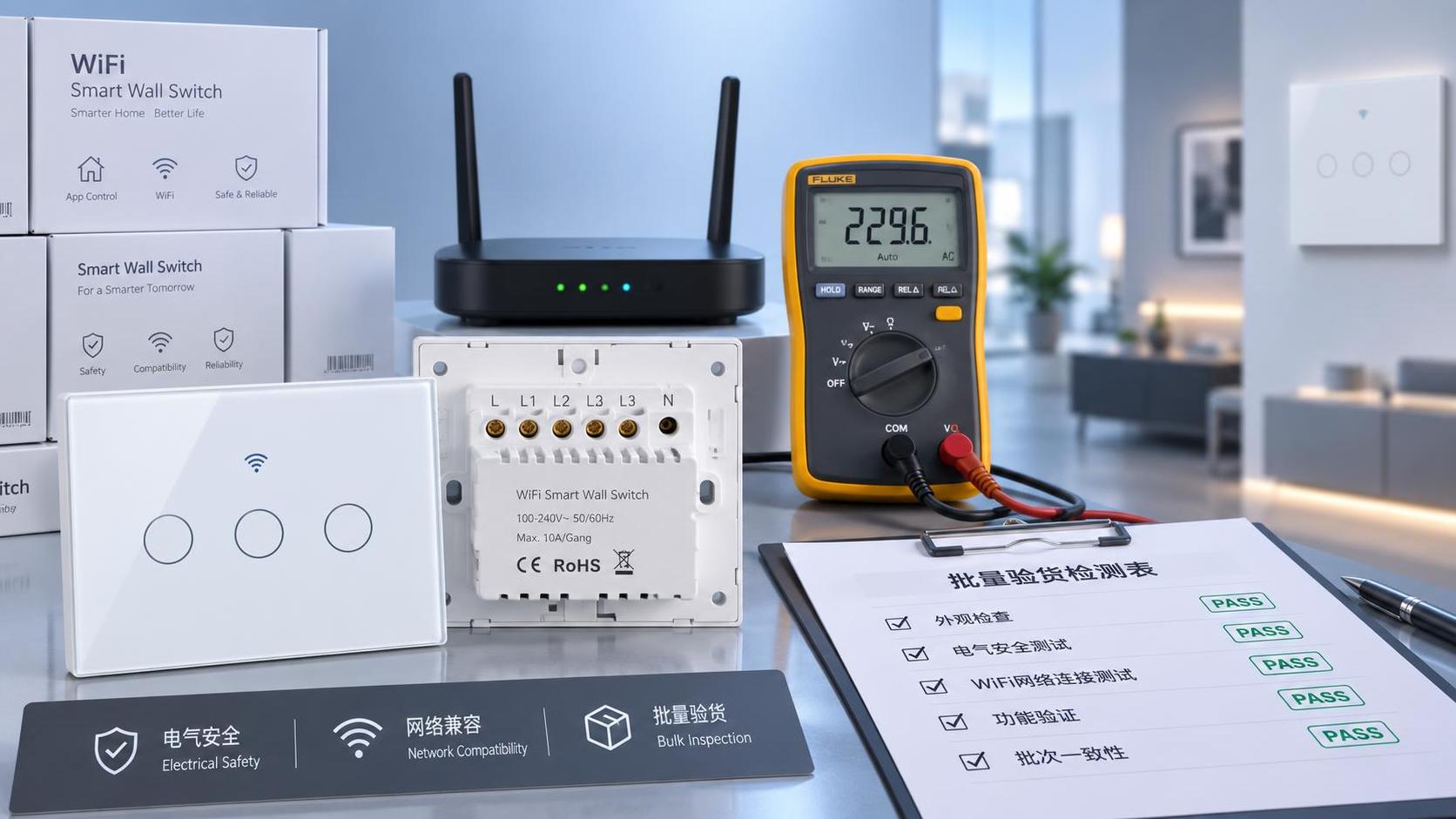
Why WiFi smart switches drop offline after installation
If your wifi smart switches keep dropping offline right after installation, the issue is often more than a simple setup mistake. From weak 2.4GHz signals and router compatibility problems to overloaded circuits and firmware conflicts, several factors can interrupt stable performance. This guide helps users and operators quickly understand the most common causes, avoid repeated disconnections, and restore reliable smart control with confidence.
Why do wifi smart switches go offline so soon after installation?
This is the first question most users ask, and it usually has a practical answer rather than a product mystery. Newly installed wifi smart switches often drop offline because the installation environment is very different from the test environment in which the device was first paired. During setup, the phone may be close to the switch, the router may be under low traffic, and the circuit may not yet be under daily load. Once normal use begins, weak signal conditions, unstable power, or incorrect network settings can quickly expose weaknesses.
In many homes, offices, and light commercial spaces, wifi smart switches rely only on the 2.4GHz network band. If the router automatically steers devices between 2.4GHz and 5GHz, or if the SSID settings are poorly optimized, the switch may connect during onboarding and then fail to maintain a stable session. Another common issue is that users install the switch inside a metal back box, behind thick walls, or near electrical noise sources such as large appliances, power supplies, and motorized equipment. These factors can weaken signal quality enough to trigger repeated offline events.
The short version is simple: when wifi smart switches disconnect immediately after installation, the root cause is usually one of four areas—network, power, configuration, or hardware compatibility. The key is to test each area in a logical order instead of resetting the device again and again.
Are network settings the most common reason wifi smart switches disconnect?
Yes, in most cases the network is the primary suspect. Even well-designed wifi smart switches can appear unreliable if they are connected to a router with settings that are unfriendly to low-power IoT devices. These switches do not behave like smartphones or laptops. They usually have simpler radios, smaller antennas, and lower tolerance for aggressive router features.
The most frequent network-related causes include:
- Connecting to a 5GHz-only network when the switch supports only 2.4GHz
- Combined SSIDs that confuse initial pairing or reconnection behavior
- Weak signal at the wall switch location, even when signal seems fine elsewhere
- Router security settings that block older IoT chipsets, such as WPA3-only mode
- DHCP conflicts or short lease times that interrupt network identity
- Too many connected devices on an entry-level router
A practical test is to stand where the switch is installed and measure the 2.4GHz signal using a phone, then compare that result with signal readings near the router. If there is a big drop, the wifi smart switches may not have enough stability margin to stay online. Also, check the router administration panel. If you see frequent reconnect attempts, IP renewals, or authentication failures, the network is likely the issue.
For operators managing multiple smart devices, it is often better to create a dedicated 2.4GHz IoT network with WPA2, simple SSID naming, and a clean password format without unusual symbols. This reduces compatibility problems and makes future troubleshooting easier.
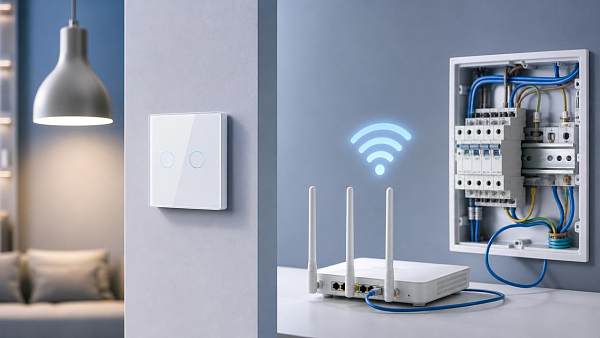
Could wiring, load type, or electrical conditions cause wifi smart switches to drop offline?
Absolutely. Users often focus only on the app and router, but the electrical side matters just as much. Many wifi smart switches need a stable line, neutral, and compatible load to power both the relay and the wireless module. If the switch is installed on an old circuit, wired incorrectly, or paired with a difficult load type, the device may reboot, lose power momentarily, or behave unpredictably.
A missing neutral wire is a major issue for models that require one. Some no-neutral designs can work, but they may be more sensitive to LED driver behavior, low loads, or ghost current conditions. In these cases, the switch may seem installed correctly yet still disconnect because the internal electronics are not receiving consistently clean power.
Load compatibility is another overlooked point. Not all wifi smart switches handle all lighting types equally well. Cheap LED bulbs, dimmable drivers, exhaust fans, transformers, and inductive loads can create electrical noise or inrush current that affects the switch. If the device goes offline mainly when the load turns on or off, the electrical load may be part of the problem.
Warning signs that point to electrical causes include random restarts, relay clicking without command, app status delay, flickering lights, and dropouts that happen only during load changes. In these cases, users should verify wiring against the manufacturer diagram, confirm neutral availability, and check whether the connected load is within the supported wattage and type.
How can users quickly identify the real cause without wasting time?
The fastest approach is to isolate variables one by one. Instead of repeatedly removing and re-adding wifi smart switches in the app, follow a short diagnostic sequence. This saves time and avoids creating new configuration errors.
A practical troubleshooting order looks like this:
- Confirm the model supports your wiring configuration and load type.
- Check that the switch is using 2.4GHz, not trying to join 5GHz.
- Review router security mode and simplify if needed.
- Measure signal quality at the installed location.
- Update firmware for both the switch and the router.
- Test whether dropouts happen only when the connected load operates.
- If possible, power and pair one switch in a controlled location before reinstalling.
This method helps users distinguish between a bad device and a bad environment. In large projects or multi-room deployments, that distinction is critical because replacing hardware will not fix a weak network design.
What installation mistakes are most common with wifi smart switches?
Several mistakes appear repeatedly, especially when users assume all smart switches install the same way. One common error is skipping the wiring verification step and relying only on wire color. In older buildings, wire colors are not always trustworthy. Another frequent mistake is placing the switch into a crowded box where wire pressure affects terminals or antenna performance.
Users also often ignore the impact of app permissions and onboarding steps. If location permissions, Bluetooth permissions, or local network permissions are disabled on the phone, pairing can partially complete but leave the switch in an unstable state. In some ecosystems, cloud region mismatch can also create apparent offline behavior, even though the physical switch still has local power.
Another mistake is updating nothing. Many wifi smart switches ship with older firmware, and some routers run years-old software with known IoT stability issues. If a switch disconnects after setup, firmware should not be treated as an advanced step; it should be part of standard commissioning.
Finally, some users install too many wifi smart switches on a weak consumer router and expect enterprise-like performance. If the site already has cameras, speakers, sensors, TVs, and mobile devices online, the router may struggle with connection management. In that situation, the smart switch is not necessarily defective. The infrastructure may simply be underpowered for the number of endpoints.
When should users suspect firmware, app ecosystem, or cloud platform issues?
If the wiring is correct, the power is stable, and the 2.4GHz network is strong, then software becomes the next likely layer. Firmware problems in wifi smart switches can cause memory leaks, failed reconnect logic, or poor handling after a router reboot. Sometimes a switch is technically powered and connected to the local network, but the app marks it offline because the cloud session failed.
You should look at firmware and ecosystem behavior if you notice patterns such as offline status after internet outages, slow app refresh, scenes not triggering, or only one brand of switch failing while other devices stay stable. These clues suggest a platform issue rather than a basic electrical fault.
For operators, it helps to separate local control from cloud control during testing. If the switch responds physically and can be reached on the LAN but still appears offline in the app, the issue may involve account sync, region settings, vendor cloud performance, or app-side bugs. In that case, checking release notes, support advisories, and firmware history becomes worthwhile.
This is also where trusted industry resources matter. On a platform such as TradeNexus Pro, decision-makers can compare technical guidance, ecosystem reliability trends, and supplier quality signals across the broader smart electronics market, rather than relying only on promotional product pages.
How can users prevent wifi smart switches from going offline again?
Prevention is mostly about installation discipline and network planning. Start by choosing wifi smart switches that clearly match the site’s wiring style, load type, and control ecosystem. Then prepare the network before installation rather than after problems begin.
Good preventive practices include using a clean 2.4GHz SSID, placing the router or access point where wall switches receive adequate coverage, keeping firmware current, and avoiding cheap unsupported loads. In larger spaces, adding a properly placed access point is often more effective than repeatedly resetting devices. If the site contains heavy appliances, pumps, motors, or noisy drivers, consider electrical filtering and circuit review as part of commissioning.
It is also wise to document each installed switch: model number, firmware version, circuit location, connected load, and router settings at the time of deployment. This simple habit makes future support faster and helps identify whether recurring offline events are tied to one product family, one circuit, or one network zone.
What should you confirm before replacing the switch or escalating to a supplier?
Before assuming the hardware has failed, confirm a few essentials. Check whether the device has stable voltage, correct wiring, acceptable load, strong 2.4GHz signal, compatible router security, and current firmware. Also verify whether the issue affects only one switch or many wifi smart switches at the same site. A single failure may point to hardware; multiple failures usually point to environment, installation method, or network design.
When speaking with an installer, distributor, or manufacturer, prepare specific questions: Does this model require a neutral wire? What load types are officially supported? Which router security modes are recommended? Is there a known firmware fix for reconnection issues? Does the product support local fallback if cloud connectivity drops? These questions lead to better outcomes than simply reporting that the switch is “offline.”
If you need to further confirm the right solution, technical parameters, deployment direction, implementation timeline, pricing, or cooperation method, prioritize discussion around wiring requirements, network environment, supported loads, firmware roadmap, after-sales diagnostics, and compatibility with your broader smart control ecosystem. That is the fastest way to turn unstable wifi smart switches into a reliable long-term installation.
Get weekly intelligence in your inbox.
No noise. No sponsored content. Pure intelligence.
 Sep 21, 2026What to Look for in a Grid Integration Company for Utility-Scale Solar ProjectsWhat to Look for in a Grid Integration Company for Utility-Scale Solar Projects
 Sep 20, 2026Microgrid Controller Pricing: What Drives Cost in Commercial Energy Projects?Microgrid Controller Pricing: What Drives Cost in Commercial Energy Projects?
 Sep 19, 2026How to Choose a GaN Charger for Laptops Without Compromising Power or PortabilityHow to Choose a GaN Charger for Laptops Without Compromising Power or Portability
 Sep 18, 2026Floating Solar Farm Costs: CAPEX, OPEX, and the Site Factors That Shape ROIFloating Solar Farm Costs: CAPEX, OPEX, and the Site Factors That Shape ROI
 Sep 17, 2026Drone Delivery Solutions for Last-Mile Routes: Site, Payload, and Range PlanningDrone Delivery Solutions for Last-Mile Routes: Site, Payload, and Range Planning
 Sep 16, 2026When Low-Volume Electronics Manufacturing Makes More Sense Than Mass ProductionWhen Low-Volume Electronics Manufacturing Makes More Sense Than Mass Production
 Sep 15, 2026Wholesale WiFi Smart Switches: What Buyers Should Verify Before OrderingWholesale WiFi Smart Switches: What Buyers Should Verify Before Ordering
 Sep 14, 2026How to Select IoT Sensors for Reliable Monitoring in Harsh Industrial EnvironmentsHow to Select IoT Sensors for Reliable Monitoring in Harsh Industrial Environments
 Sep 13, 2026How Procurement Teams Can Improve Supplier Reliability With Supply Chain VisibilityHow Procurement Teams Can Improve Supplier Reliability With Supply Chain Visibility
 Sep 12, 2026Smart Manufacturing Trends 2026: What Leaders Should Prioritize for ROISmart Manufacturing Trends 2026: What Leaders Should Prioritize for ROI
 Sep 11, 2026B2B Market Analysis: How Buyers Evaluate Suppliers, Pricing, and Delivery RiskB2B Market Analysis: How Buyers Evaluate Suppliers, Pricing, and Delivery Risk
 Sep 10, 2026Residential Solar Kits in Canada: How to Size a System for Your Home and ClimateResidential Solar Kits in Canada: How to Size a System for Your Home and Climate
 Sep 09, 2026How to Specify a Syringe Assembly Line for High-Volume Sterile ProductionHow to Specify a Syringe Assembly Line for High-Volume Sterile Production
 Sep 08, 2026How to Evaluate Warehouse Robotics System Suppliers for Reliable Multi-Site DeploymentHow to Evaluate Warehouse Robotics System Suppliers for Reliable Multi-Site Deployment
 Sep 07, 2026Renewable Geothermal Energy Explained: How It Works for Heating and PowerRenewable Geothermal Energy Explained: How It Works for Heating and Power
 Sep 07, 2026How to Choose an Industrial Packaging Robot Manufacturer for Your Production LineHow to Choose an Industrial Packaging Robot Manufacturer for Your Production Line
 Sep 05, 2026How to Evaluate a Turnkey Hydro Turbine Generator Supplier for Remote Power ProjectsHow to Evaluate a Turnkey Hydro Turbine Generator Supplier for Remote Power Projects
 Sep 04, 2026Automated Ultrasonic Welding for Thermoplastic Assemblies: Process Controls That MatterAutomated Ultrasonic Welding for Thermoplastic Assemblies: Process Controls That Matter
 Sep 03, 2026Energy Forecasting for Grid Planning: Sizing Solar and Storage CapacityEnergy Forecasting for Grid Planning: Sizing Solar and Storage Capacity
 Sep 02, 2026Which Metrics Should an Energy Analytics Dashboard Track for Factory Energy Management?Which Metrics Should an Energy Analytics Dashboard Track for Factory Energy Management?
 Sep 01, 2026How Warehouse Voice Picking Improves Accuracy and Throughput in Order FulfillmentHow Warehouse Voice Picking Improves Accuracy and Throughput in Order Fulfillment
 Aug 31, 2026How to Automate Dropshipping Order Processing Without Overselling StockHow to Automate Dropshipping Order Processing Without Overselling Stock
 Aug 30, 2026How to Evaluate a Smart Lighting Supplier for Multi-Site Commercial ProjectsHow to Evaluate a Smart Lighting Supplier for Multi-Site Commercial Projects
 Aug 29, 2026Recent Advances in Smart Manufacturing and Materials Reshaping Factory InvestmentRecent Advances in Smart Manufacturing and Materials Reshaping Factory Investment
 Aug 29, 2026Selecting Lightweight Aluminum Extrusions for Strength-Critical Industrial DesignsSelecting Lightweight Aluminum Extrusions for Strength-Critical Industrial Designs
 Aug 29, 2026Vertical Powder Anodizing Explained: Process Controls for Uniform Coating QualityVertical Powder Anodizing Explained: Process Controls for Uniform Coating Quality
 Aug 29, 2026PV Module Product Due Diligence: What Buyers Should Verify Before ContractingPV Module Product Due Diligence: What Buyers Should Verify Before Contracting