USB-C Docking Stations in the UK: A Buyer's Guide to Compatibility and Charging
A USB-C docking station is a sensible purchase when it can run your chosen monitors, power your laptop adequately and connect your everyday peripherals through one cable. The difficulty is that the USB-C socket alone proves very little. Two docks with similar ports can behave differently on the same computer, and an expensive dock cannot add display capabilities that the laptop does not support.
For most buyers comparing USB-C docking stations in the UK, the best starting point is the laptop’s exact model, the number and resolution of external screens, and the wattage of its original charger. Establish those three details before comparing products. A compact USB-C dock may cover a straightforward home office, while a more demanding display setup may justify Thunderbolt, USB4 or a dock using USB graphics technology.
Begin with the laptop’s specification, not the dock’s port count. Look up the manufacturer’s documentation for your exact model and configuration. A family name is insufficient because laptops sold under similar names can have different USB ports, graphics capabilities and charging arrangements.
The documentation should establish whether the intended port supports video output, charging input and the connection standard required by the dock. These are separate capabilities. A USB-C port can support data transfer without supporting an external monitor, and a laptop with USB-C video output may still require its own power connector.
For a conventional USB-C video dock, look for DisplayPort Alt Mode support. This allows the laptop to send a native display signal through USB-C. Port symbols can help, but they are not a reliable substitute for the specification sheet. If the documentation only describes data speeds, do not assume that video or charging is included.
Thunderbolt and USB4 can provide more capable connections, but compatibility still needs checking at both ends. A Thunderbolt dock may offer reduced functionality on an ordinary USB-C host, or may require a Thunderbolt connection for its intended features. USB4 branding alone does not settle how many monitors a particular laptop can drive. Read the dock manufacturer’s host requirements and compatibility notes alongside the laptop specification.
A useful shortlist starts with a few concrete questions:
- Does the laptop’s chosen port support the dock’s connection method and video requirements?
- Does the dock explicitly support the operating system and laptop model, where a model list is available?
- Can this combination drive the required number of independent external displays?
- How much charging power reaches the laptop through the upstream connection?
- Are the necessary power supply, host cable and UK mains lead included?
Keep these answers attached to each candidate. “Compatible with USB-C laptops” is too broad to resolve them.
Work backwards from the monitors you intend to use. “Dual HDMI” describes the sockets on a dock; it does not guarantee two independent extended desktops on every computer. The result depends on the laptop’s graphics support, operating system, connection bandwidth and the way the dock generates its display outputs.
Write down each monitor’s resolution and desired refresh rate. A listing that advertises “4K support” may refer to one screen, a lower refresh rate, or a configuration that changes when another display is connected. Look for a display configuration table showing the simultaneous outputs supported on your type of host. For office work, check that the dock delivers your intended refresh rate at native resolution; a screen running below your expectations can make everyday pointer movement and scrolling feel less fluid.
Windows buyers should check whether a multi-monitor USB-C dock uses DisplayPort Multi-Stream Transport, usually shortened to MST. With compatible hardware and software, MST can carry separate display streams through one connection. Available bandwidth still limits the combined resolution and refresh rate. Some configurations also depend on Display Stream Compression, so a dock’s maximum display claim may require specific host capabilities.
Mac buyers need particular care. macOS does not use DisplayPort MST to create separate extended desktops in the way Windows does. Consequently, a USB-C dock with two display sockets may mirror the same image across both external monitors when connected to a Mac. A Thunderbolt dock can support separate display streams where the Mac supports them, but the exact Mac model’s external-display limit remains decisive. Some models also have conditions involving whether the built-in display is active.
DisplayLink docks offer another route. They use software and USB data to deliver graphics, which can enable additional displays on some systems with restrictive native display support. That can suit office applications, documents and general productivity. It also introduces a driver or application requirement, operating-system permissions and a different performance profile. Check suitability carefully for gaming, colour-sensitive work, protected video and computers on which software installation is restricted.
For a mixed Windows and Mac household, favour a dock whose documentation explains both platforms separately. A single “supports three monitors” headline is weak evidence if the detailed configurations differ by operating system. Ask for the supported arrangement using your exact laptop and screen specifications when the published information is incomplete.
Display connections also share resources with other dock functions. On some USB-C designs, the allocation of high-speed lanes between video and USB data affects what can run simultaneously. A dock advertising fast storage connections and multiple high-resolution displays may attach conditions to that combination. Buyers moving large files to external SSDs while using several screens should examine simultaneous-use specifications, rather than treating every maximum on the product page as additive.
Charging claims need a separate check. The power printed on an adaptor, the power entering a dock and the power delivered to a laptop can be different figures. A dock consumes power itself and may reserve some for attached devices. A “100W” headline therefore needs context: it could describe the supported power input rather than a guaranteed 100W output to the computer.
Look specifically for “host charging”, “power delivery to laptop” or an equivalent output specification. Compare that figure with your laptop manufacturer’s recommended power supply. For example, if a dock accepts 100W but specifies 85W to the host, assess it as an 85W charging source. The difference matters when the laptop is under sustained load, even if it charges normally while idle.
A laptop receiving less power than it needs may charge slowly, display a low-power warning, reduce performance or draw from its battery during demanding work. Gaming laptops and mobile workstations deserve particular attention: some accept USB-C charging for lighter use but require their original adaptor for full performance. Connecting the original charger alongside the dock may be the appropriate arrangement, subject to the laptop manufacturer’s guidance.
USB Power Delivery negotiates a supported power level between devices. A higher-rated compliant charger does not simply force its full wattage into the laptop. However, the usable result depends on the charger, dock, cable and computer supporting the required power profiles. A high wattage figure on one component cannot compensate for a limitation elsewhere in the chain.
The host cable is easy to overlook. It must support both the connection’s data capabilities and the intended charging power. A cable sold primarily for charging may be unsuitable for a high-bandwidth dock. Use the supplied cable initially, and check the specification before replacing it with a longer one. For USB PD charging above 60W, an appropriately rated electronically marked cable is required; higher-power Extended Power Range operation has additional cable requirements.
Check whether the dock includes a power supply at all. Many compact hubs offer charging pass-through and expect you to connect a separate USB-C charger. If you reuse the laptop’s original charger, the hub’s own power allowance may reduce what reaches the computer. Include any extra charger and suitable cable in the purchase comparison. A low advertised dock price can become less attractive once the complete setup is costed.
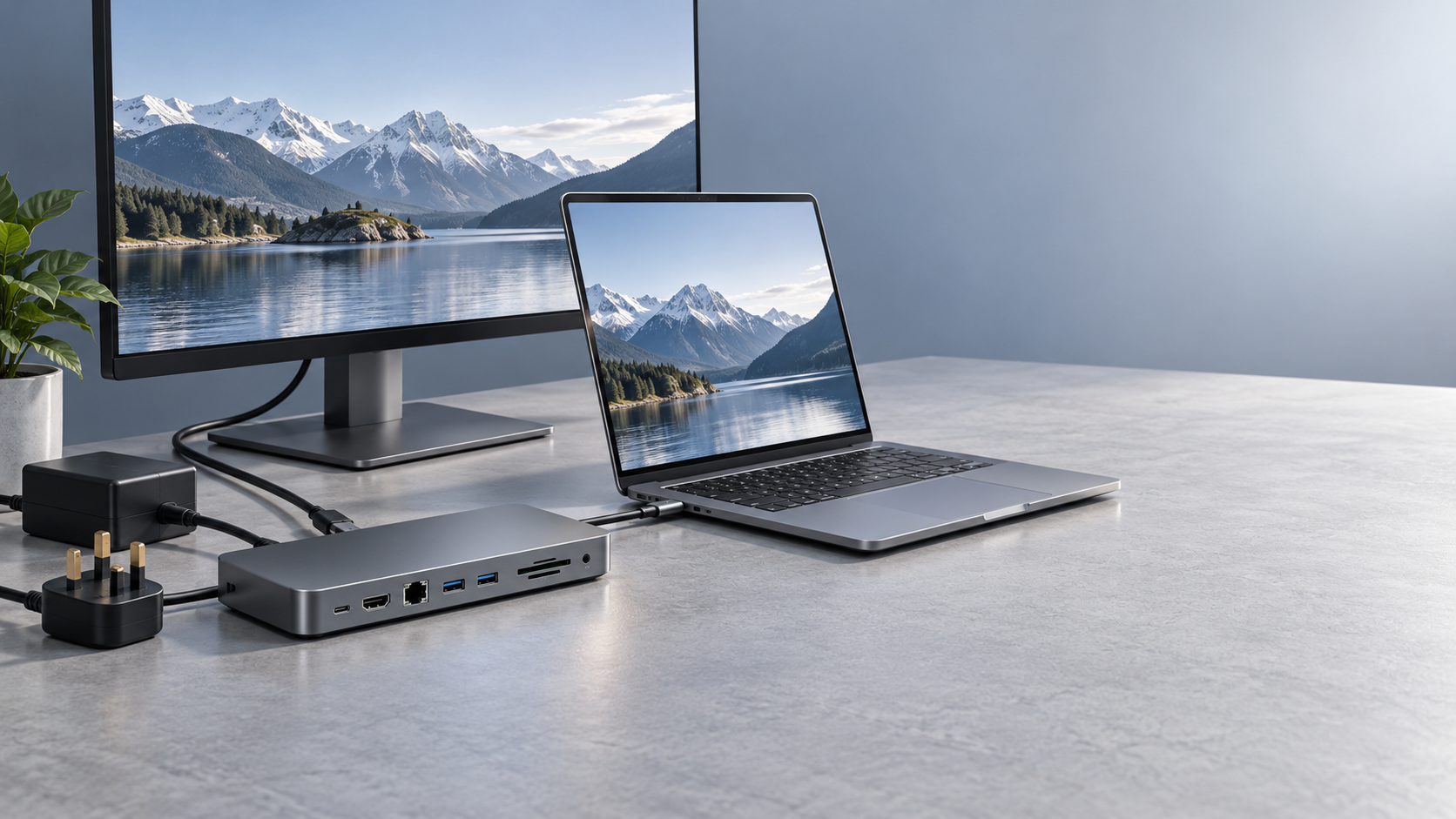
For a UK purchase, inspect the power bundle as closely as the dock. A listing should identify the supplied adaptor and mains connection. Where a mains-powered dock is sold for UK use, check that the package includes an appropriate UK three-pin plug or mains lead. Marketplace images sometimes show several regional versions, so rely on the written contents for the specific listing.
Read the adaptor’s input rating as well. Many laptop accessories accept a broad range of mains voltages, but this should be stated on the actual supply or in its documentation. A travel plug adaptor changes the physical connection; it does not convert voltage. Avoid making an imported bundle usable through an improvised chain of plug adaptors when a properly specified UK supply is available.
Product identification and seller accountability matter more than a vague claim of “certified”. Look for a traceable manufacturer, a clearly identified power supply, relevant product documentation and an accessible support route. Regulatory markings serve a different purpose from USB or Thunderbolt certification, and neither guarantees that a dock will deliver your particular monitor arrangement. Each claim should answer the question it actually covers.
Compare the total delivered cost, including VAT where applicable, required accessories and any import-related charges stated by the seller. Check who handles a faulty unit and where returns must be sent. For a dock, a practical return route is valuable because published compatibility cannot describe every interaction between a laptop, firmware, operating system and monitor.
Choose the smallest specification that fully supports your desk. For one monitor, a keyboard, a mouse and occasional storage use, a well-documented USB-C dock may be sufficient. Paying for Thunderbolt adds little if the laptop cannot use it and the required functions already work through ordinary USB-C.
For two high-resolution monitors, frequent external-drive transfers or a more demanding laptop, examine Thunderbolt and USB4 options alongside suitable USB-C models. Compare the exact supported configurations and charging output. For a Mac with a limited native external-display allowance, decide whether a DisplayLink software dependency is acceptable before buying. For a gaming laptop, settle the charging arrangement first; docking convenience may still involve a separate power lead.
Once the dock arrives, test the complete setup promptly. Connect both monitors at their intended resolutions and refresh rates, attach the peripherals you normally use, and run a representative workload while checking battery behaviour. Test sleep, wake and reconnection as well. If a problem appears, use the supplied host cable and consult the manufacturer’s firmware and driver guidance before adding adapters or replacement cables.
The strongest purchase is one you can describe precisely: this dock supports this laptop, these displays and this charging requirement, with the necessary UK power accessories included. When a seller cannot substantiate one of those points, keep looking. Clear compatibility evidence is more useful than another row of ports.
Get weekly intelligence in your inbox.
No noise. No sponsored content. Pure intelligence.
 Oct 29, 2026Poland to End SENT Registration for Certain Scrap Metal Road Shipments on October 28Poland to End SENT Registration for Certain Scrap Metal Road Shipments on October 28
 Oct 29, 2026Energy Storage System Quotation: How to Compare Scope and Hidden CostsEnergy Storage System Quotation: How to Compare Scope and Hidden Costs
 Oct 28, 2026BNEF Raises US Battery Storage Forecast 30%, Sees 213.9 GW by 2030BNEF Raises US Battery Storage Forecast 30%, Sees 213.9 GW by 2030
 Oct 28, 2026Global Trade Intelligence Pricing: Data Coverage, User Seats, and API CostsGlobal Trade Intelligence Pricing: Data Coverage, User Seats, and API Costs
 Oct 27, 2026Western Australia 1GW Data Centre With 5GWh Battery Enters Federal Review ProcessWestern Australia 1GW Data Centre With 5GWh Battery Enters Federal Review Process
 Oct 27, 2026USB-C Docking Stations in the UK: A Buyer's Guide to Compatibility and ChargingUSB-C Docking Stations in the UK: A Buyer's Guide to Compatibility and Charging
 Oct 26, 2026AgiBot Scales Up Production as 100 Expedition A3 Robots Stage Guinness Record AttemptAgiBot Scales Up Production as 100 Expedition A3 Robots Stage Guinness Record Attempt
 Oct 26, 2026Rehabilitation Equipment for Outpatient Clinics: What to Check Before BuyingRehabilitation Equipment for Outpatient Clinics: What to Check Before Buying
 Oct 25, 2026Teradyne Robotics and Sereact Partner on AI-Powered Returns AutomationTeradyne Robotics and Sereact Partner on AI-Powered Returns Automation
 Oct 25, 2026Smart Warehousing Integration: How to Connect Robots to an Existing WMSSmart Warehousing Integration: How to Connect Robots to an Existing WMS
 Oct 24, 2026Tesla Q3 2026 Storage Deployments Rank Second Highest as Revenue Falls 16%Tesla Q3 2026 Storage Deployments Rank Second Highest as Revenue Falls 16%
 Oct 24, 2026Freight Forwarding Services Pricing: Comparing Quotes Beyond Base RatesFreight Forwarding Services Pricing: Comparing Quotes Beyond Base Rates
 Oct 23, 2026IndexBox Issues Off-Grid Solar Outlook to 2035, Forecasting 8.2% CAGRIndexBox Issues Off-Grid Solar Outlook to 2035, Forecasting 8.2% CAGR
 Oct 23, 2026NSF/ANSI 49 Biosafety Cabinets: Product Certification vs. Field TestingNSF/ANSI 49 Biosafety Cabinets: Product Certification vs. Field Testing
 Oct 22, 2026Mitsubishi Electric Develops Industry-First Humanoid Robot–CNC Machining SystemMitsubishi Electric Develops Industry-First Humanoid Robot–CNC Machining System
 Oct 22, 2026Aerospace Aluminum Machining: How to Control Distortion in Thin-Wall PartsAerospace Aluminum Machining: How to Control Distortion in Thin-Wall Parts
 Oct 21, 2026Genesis Energy commissions 200 MWh battery storage system at HuntlyGenesis Energy commissions 200 MWh battery storage system at Huntly
 Oct 21, 2026Buying AMI Smart Meters Wholesale: Compatibility Checks and Total CostsBuying AMI Smart Meters Wholesale: Compatibility Checks and Total Costs
 Oct 20, 2026Werner Enterprises Issues Q3 Earnings Warning as Costs RiseWerner Enterprises Issues Q3 Earnings Warning as Costs Rise
 Oct 20, 2026Are Digital Twins Viable for SMEs? Costs, Use Cases, and Data RequirementsAre Digital Twins Viable for SMEs? Costs, Use Cases, and Data Requirements
 Oct 19, 2026Choosing a Wholesale Servo Motor Exporter: Traceability and Warranty ChecksChoosing a Wholesale Servo Motor Exporter: Traceability and Warranty Checks
 Oct 18, 2026Syringe Manufacturing Equipment: Evaluating Throughput and Assembly AccuracySyringe Manufacturing Equipment: Evaluating Throughput and Assembly Accuracy
 Oct 17, 2026Air Freight Forwarding Services: How to Compare Quotes for Urgent ShipmentsAir Freight Forwarding Services: How to Compare Quotes for Urgent Shipments
 Oct 16, 2026Wholesale Solar Panels: How to Compare Bulk Quotes by Total Landed CostWholesale Solar Panels: How to Compare Bulk Quotes by Total Landed Cost
 Oct 15, 2026Supply Chain Intelligence for Sourcing: How to Vet New SuppliersSupply Chain Intelligence for Sourcing: How to Vet New Suppliers
 Oct 14, 2026How to assess a smart manufacturing systems integrator for retrofitsHow to assess a smart manufacturing systems integrator for retrofits
 Oct 14, 2026How energy costs shape smart manufacturing investment in EuropeHow energy costs shape smart manufacturing investment in Europe